
Manage Forms
Archive and Re-activate Forms
Forms by Trust let you easily gather testimonials from your customers and clients.
Archiving a form is essential for maintaining an organized system by removing outdated or irrelevant forms from active use while preserving them for future reference. This process helps reduce clutter, making it easier for users to locate current forms, and ensures that historical data is still accessible for analysis or compliance purposes.
Archiving also supports data security by limiting access to sensitive information that is no longer needed, while still retaining it for record-keeping or auditing requirements.
1. In the Collect section, navigate to the Forms menu.
2. Choose the form you now wish to archive.

3. Click the ⋮ button beside the Copy Link button.

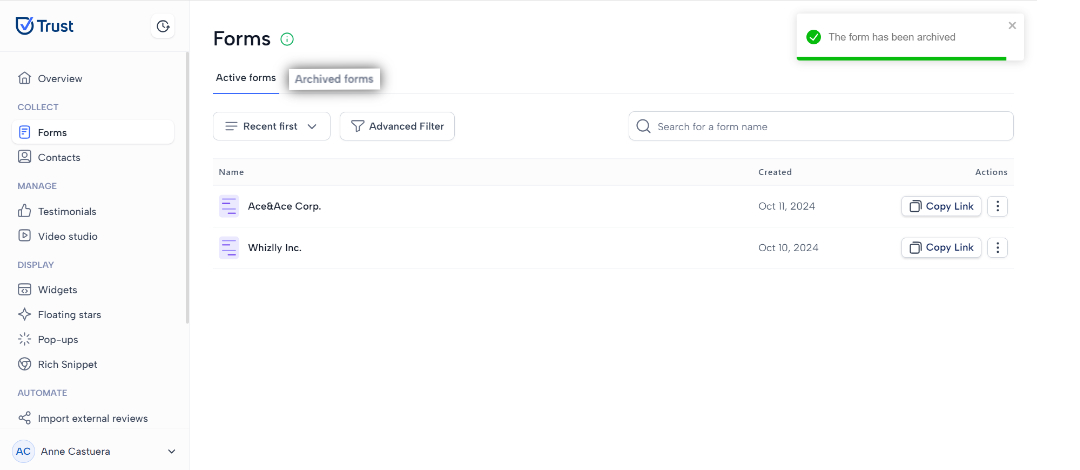
4. To archive the form, click on the Archive option.

5. Go to the Archived Forms tab.
3. Go to any of the archived forms you want to re-activate.

4. Click on the Re-activate button.


Clone a Form
Cloning a form is beneficial because it saves time and maintains consistency, allowing for quick modifications without starting from scratch. This enables you to tailor existing forms for specific needs while preserving established best practices, streamlining workflows and enhancing efficiency.
1. In the Collect section, navigate to the Forms menu.
2. Navigate to any of the active forms you want to clone.

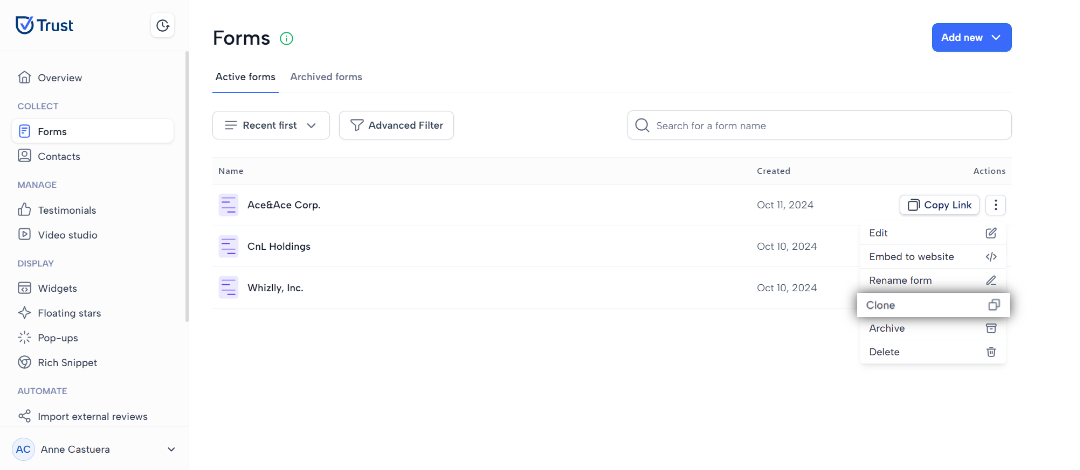
3. Click on the ⋮ button beside the Copy Link button.
4. Click Clone to duplicate the form.
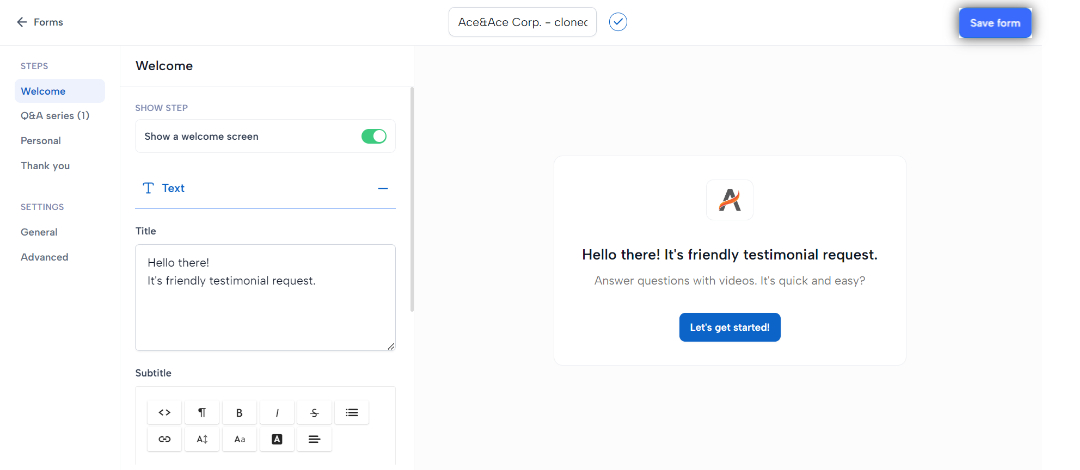
5. Review and make any necessary changes on the cloned form as needed.

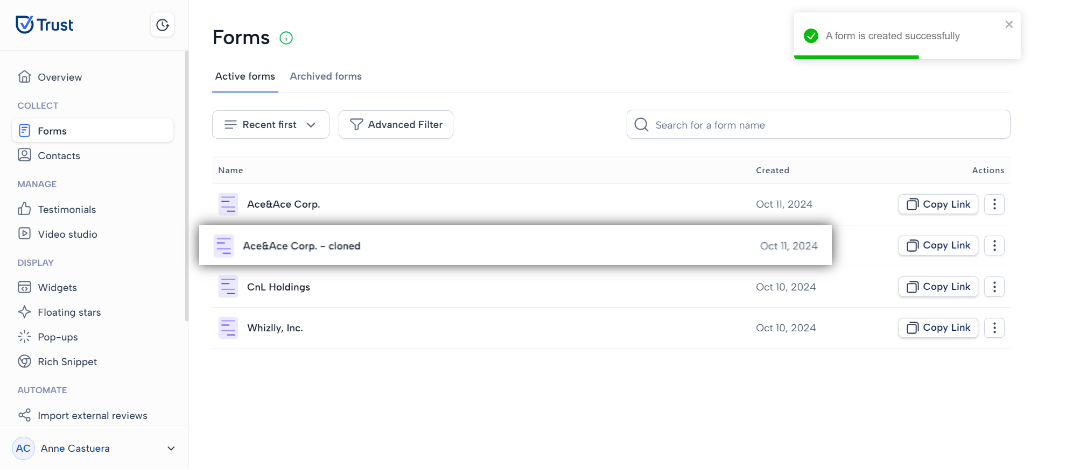
6. Click the Save form button.
Delete a Form
Deleting a form can be necessary to maintain company and clarity, especially if the form is outdated, no longer relevant, or has been replaced by a more effective version. Removing unnecessary forms reduces confusion and mess, thus making the right and accurate information easier to find for your clients. More importantly, it builds better security to your information data by removing forms of outdated or sensitive information.
How to delete an active form
1. In the Collect section, navigate to the Forms menu.
2. Navigate to any of the active forms you want to delete.
3. Click on the ⋮ button beside the Copy Link button.

4. Click the Delete option.

5. Click the Delete button on the Caution window to successfully remove the form.
How to delete an archived form?
1. In the Collect section, navigate to the Forms menu.
2. Navigate to any of the archived forms you want to delete.
3. Click on the 🗑 button.

4. Click the Delete button on the Caution window to successfully remove the form.
Rename a Form
Renaming a form is essential for users' clarity, it ensures the updated title accurately reflects its purpose and content. Users are more likely to be aware of the items they have added to the forms area when the name is clear and descriptive. This helps in organization of forms while using the Trust platform
1. In the Collect section, navigate to the Forms menu.
2. Navigate to any of the active forms you want to rename.
3. Click on the ⋮ button beside the Copy Link button.
4. Click the Rename form option.

5. Update to your desired form name, then click Save button.

6. Click the Save button.
Search and Filter Forms
Searching a Form
1. In the Collect section, navigate to the Forms menu.
2. Navigate to the Search for a form name bar on the Active forms tab.
3. Type relevant keywords for the form name into the search bar.


Using Filter on Forms
1. In the Collect section, navigate to the Forms menu.
2. Click on the “Recent first” drop down below to display the basic filters. Select any of the options displayed.
- Recent first - filters your forms from the newest form to the oldest
- Recent last - filters your forms from the oldest form to the newest
- Name A-Z - filters your form in alphabetical ascending order
- Name Z-A - filters your form in alphabetical descending order

3. By selecting one of the options, your forms will now be displayed based on the selected filter. In the example below the forms are displayed from A-Z.
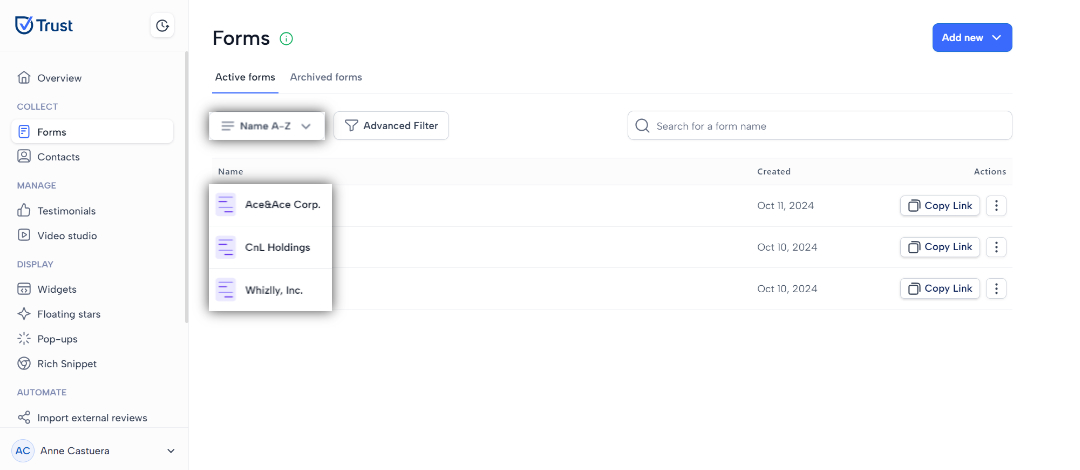
4. Another way to filter your forms is by using the Advanced Filter. This allows you to filter your forms by type (Smart form and Interactive form).

5. Clicking the Advanced Filter button displays the window to the right.
- All - Displays all you forms
- Interactive - This option only displays your Interactive forms
- Smart - This option only displays your smart forms

6. Select the type of form you want to display then click on “Apply Filter”.
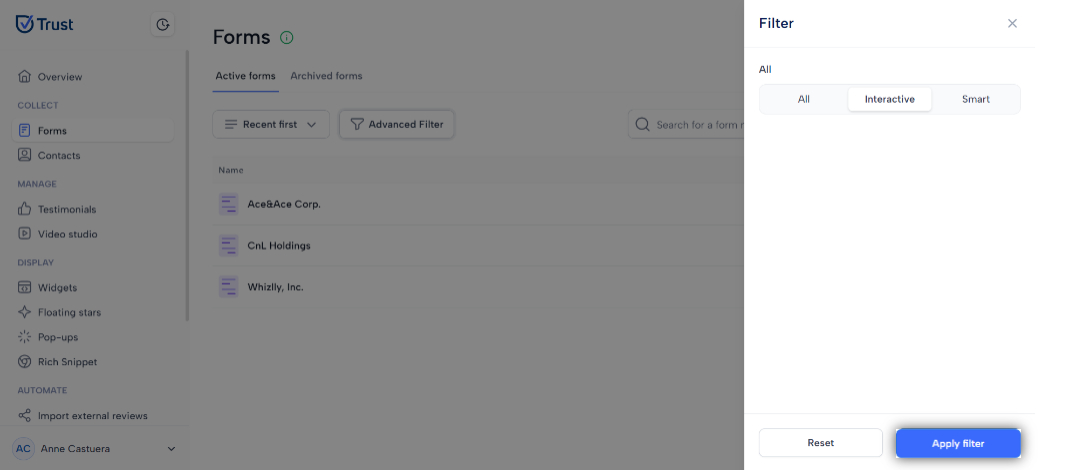
7. Your forms will now be displayed based on the selected filter.
8. To remove the filter, click on Advanced Filter, and click Reset.

9. All your forms will then be displayed.