
Manage Testimonials
Replace or Delete a video from Video Testimonial
Follow the guide below to learn how to delete or replace uploaded videos in your video testimonials. Replacing or deleting a video from a video testimonial is important for maintaining the quality and relevance of your content, so follow these easy steps to manage your video testimonials.
1. In the Manage section, go to the Testimonials menu.
2. Click on the testimonial which has the video you want to delete or replace.
3. Click on the edit icon of the testimonial window.

4. Go to the end of the Edit testimonial page.

5. Click on the “Delete Video” button.

6. A prompt will display to confirm whether you want to proceed with deleting the video.

7. Click the “Delete” button to successfully delete your video.
8. Click on the “Upload video” button to replace the previous video with the desired video you want to upload.

9. Select the video you want to upload and click “Save”.

10. The new video is now uploaded.
11. On the other hand, if you want to link to a 3rd party video, then click on the “Link 3rd party video” button.

12. Enter the video URL.

13. Click on the “Save” button.

How to Delete Testimonials
Please note that a testimonial, once deleted, cannot be restored. This applies to all scenes of a video from the Video Editor on our app.
Delete a single Testimonial
1. In the Manage section, navigate to the Testimonials menu.
2. Click on the testimonial you want to delete.

3. The testimonial will be displayed. Click on the trash icon displayed on the upper right corner of the window.

4. A window will be displayed, select “Delete” to proceed with deleting the testimonial.

5. The testimonial is now successfully deleted.
Delete multiple testimonials at a time
1. In the Manage section, navigate to the Testimonials menu.
2. Select the testimonials you want to delete by ticking the checkbox on the left hand side of each testimonial. You can select multiple checkboxes at a time.

3. Click on the “Delete” button that is now displayed on the right hand corner of the screen.

4. A window will be displayed, select “Delete” to proceed with deleting the testimonials.
5. The testimonials are now successfully deleted.
Search for a Testimonial
1. In the Manage section, navigate to the Testimonials menu.
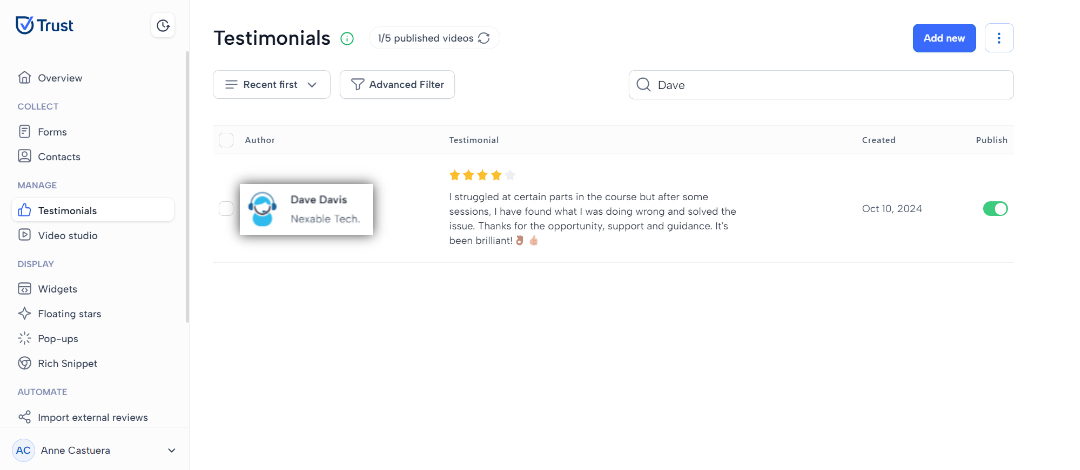
2. Navigate to the search bar on the Testimonials page.
3. Type relevant keywords for the question or author into the search bar.

4. Browse through the search results to find the specific testimonial you need.
Filter Your Testimonials
How to filter your testimonials?
Filtering the testimonials is necessary to enhance usability and efficiency so that users can speed up filtering and viewing of the testimonials according to their needs. Then learn the available filters by reading further in this chapter.
1. In the Manage section, navigate to the Testimonials menu.
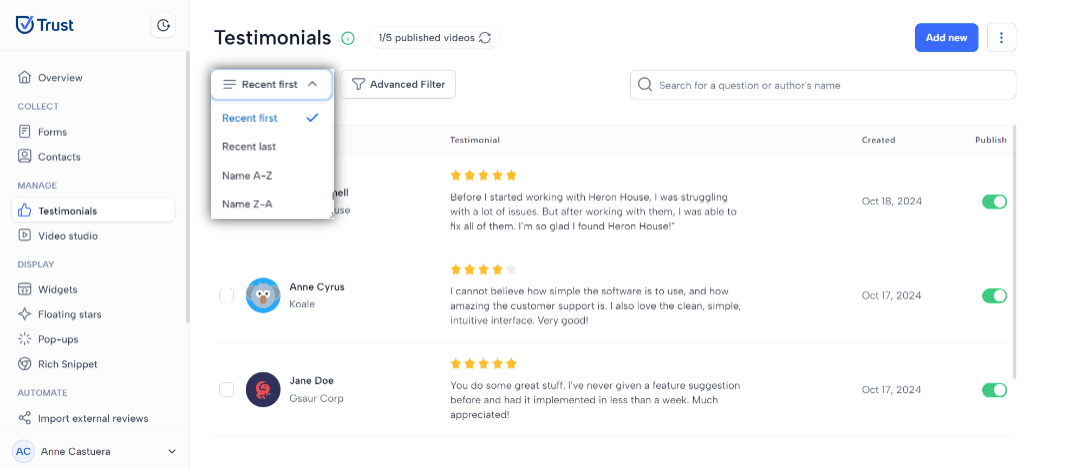
2. Click on the “Recent first” drop down below to display the basic filters.
- Recent first - filters your forms from the newest form to the oldest
- Recent last - filters your forms from the oldest form to the newest
- Name A-Z - filters your form in alphabetical ascending order
- Name Z-A - filters your form in alphabetical descending order
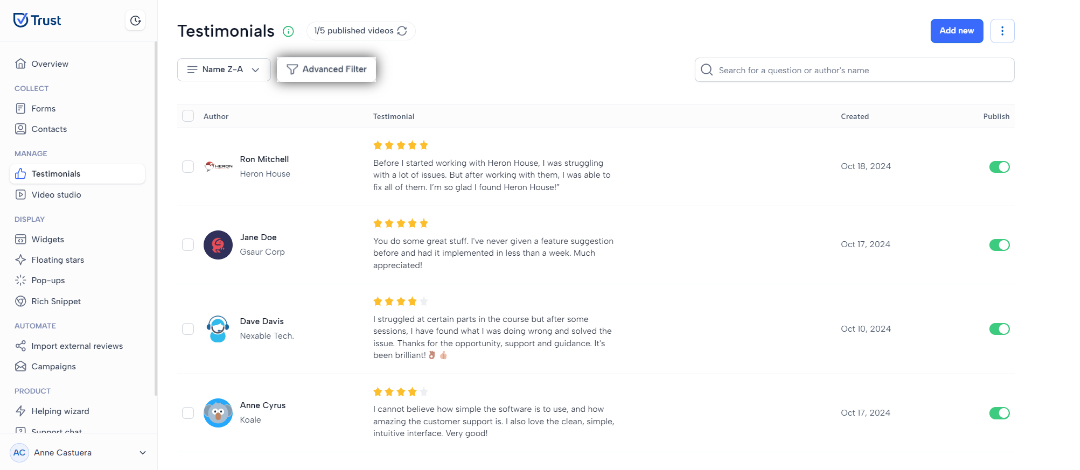
3. By selecting one of the options, your testimonials will now be displayed based on the selected filter. In the example below the testimonials are displayed from Z-A.
4. Another way to filter your testimonials is by using the Advanced Filter. This can be used by clicking on the “Advanced Filter” button.
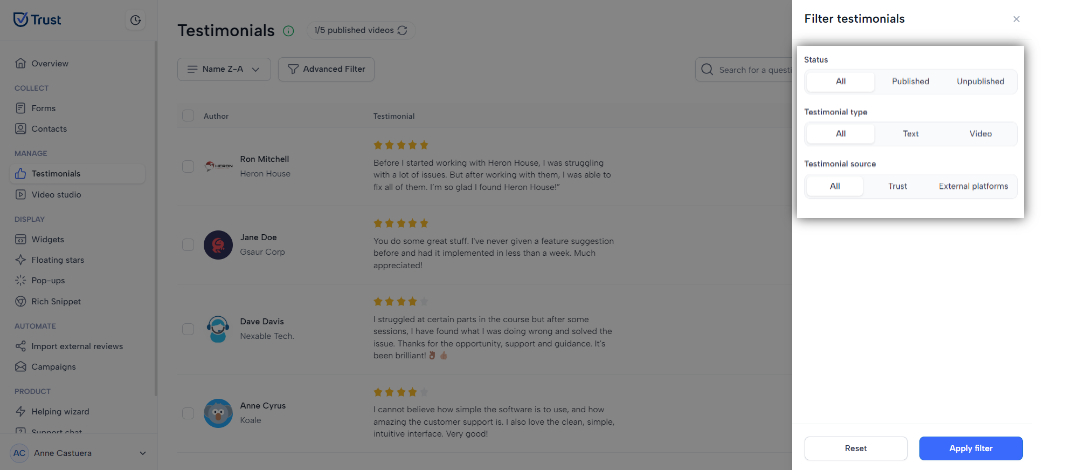
5. Clicking the Advanced Filter button displays the window to the right. There are 3 ways you can filter your testimonials, by status, testimonial type, and testimonial source.
- Status - Enables you to display your published or unpublished testimonials, or all your testimonials, regardless of their status.
- Testimonial type - Enables you to display your text or video testimonials, or all your testimonials regardless of its type.
- Testimonial source - Enables you to display your testimonials from Trust or an external platform, or all your testimonials regardless of its source.
6. Select the filter options based on which testimonials you want to display and click “Apply filter”.
In the example below, we’ve selected “Published” for the status, “Text” for the type, and “Trust” for the source.
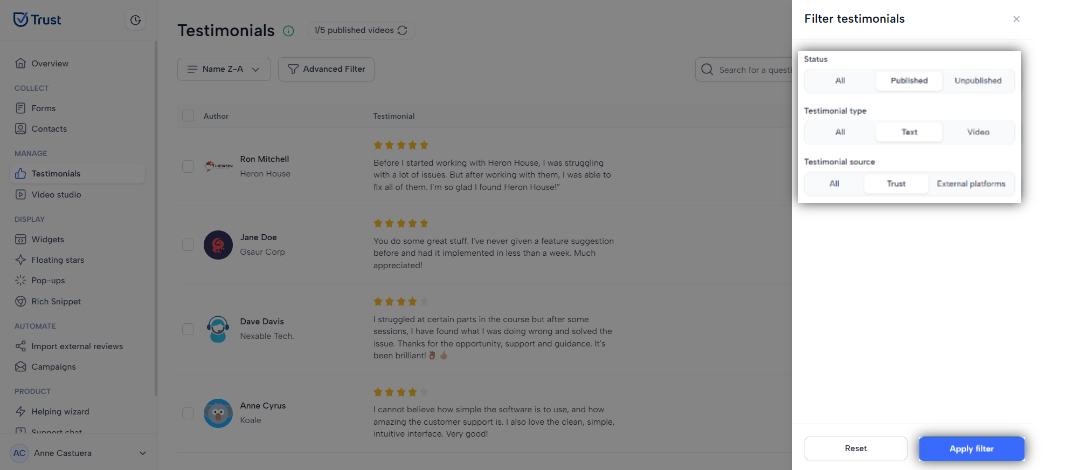
7. Published text testimonials from Trust are now displayed.
8. To remove the filter, click on Advanced Filter, and click Reset.
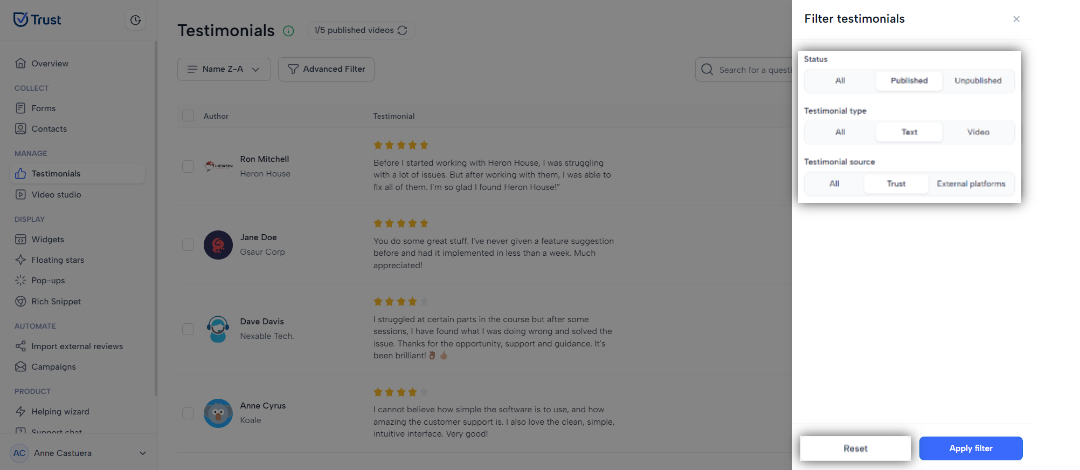
9. All your testimonials will then be displayed.
Set a Testonial Live or Offline
Via the main menu
1. In the Manage section, navigate to the Testimonials menu.
2. Find the testimonial you want to unpublish. On the right most side of your testimonial, click on the toggle button under the “Live” column.

3. Your testimonial should now be unpublished.
Via the Testimonial window
1. In the Manage section, navigate to the Testimonials menu.
2. Click on the testimonial you want to unpublish.

3. The testimonial will be displayed. Click on the toggle button displayed on the lower left corner of the window.
